

Getting started
Welcome. Here is what happens from your first appointment, and a simple guide to the app that carries your child's plan home — between every visit.
What happens, step by step
Everything we do is built around understanding your child first, then handing you a plan you can actually act on at home.
- Book an assessment. A doctor-led clinical and developmental evaluation that establishes why your child is struggling — not a label, but an understanding. More on the assessment.
- Get your child's profile and plan. Individual to your child: what they can already do, what they find hard, and what to do about it — written for you, in plain language.
- Your clinician sets you up with the app. The profile and plan are already there the first time you open MyGeniusLane Family. You don't sign up or hunt for it in a store — it is set up for you as part of the programme.
- Work the plan at home, between visits. The hours between sessions are where progress takes hold. The app hands the plan to everyone around your child and keeps everything about their care in one place.
- Reviews and progress. You stay in touch with your centre, join reviews, and see how your child is doing over time — the plan grows with them.
- Only reports your clinician has released reach you, and nothing is diagnosed in the app.
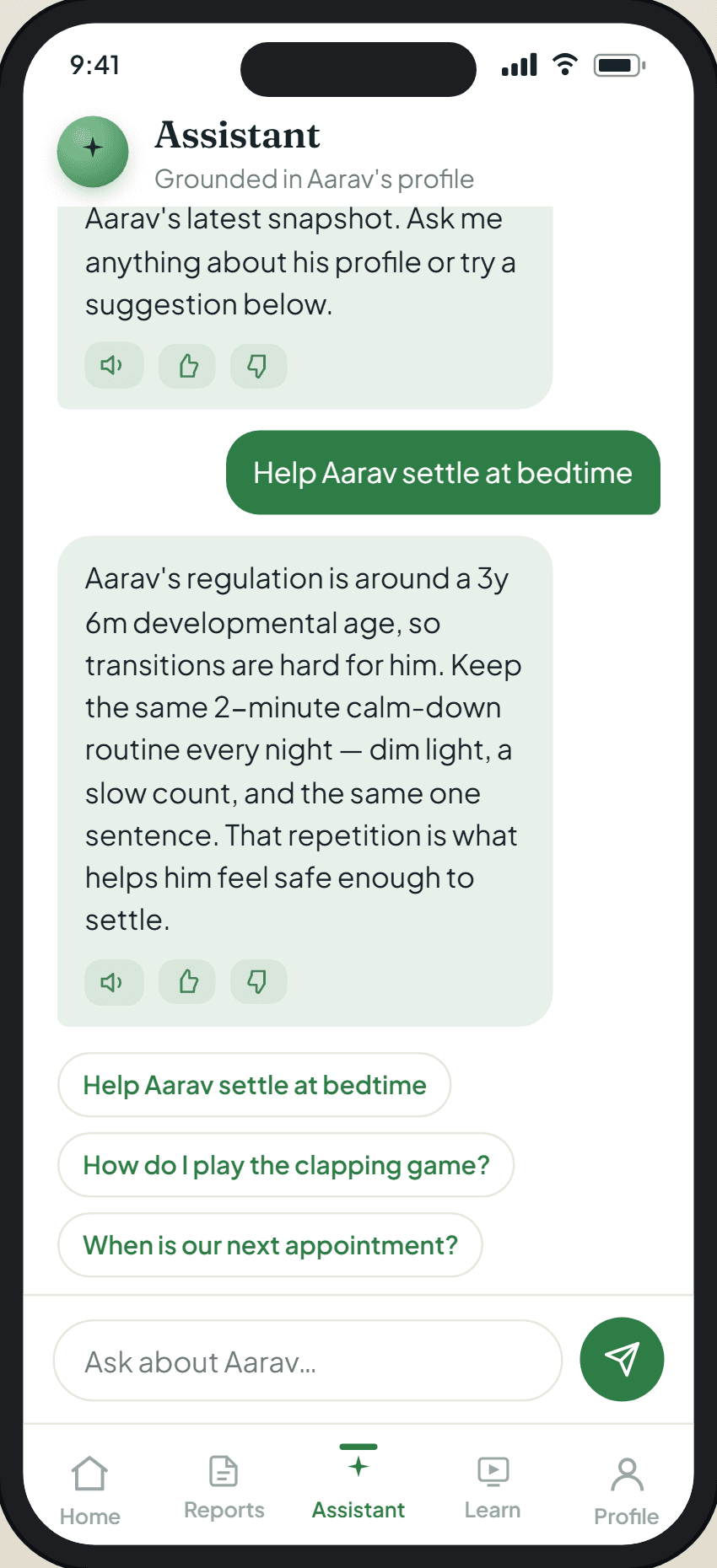
- The app's assistant is clearly labelled AI, not a clinician — it answers everyday questions and explains your plan, but a person confirms anything clinical.
- The app is not for emergencies. If your child needs urgent help, contact your local emergency services.
Using the app — a quick guide
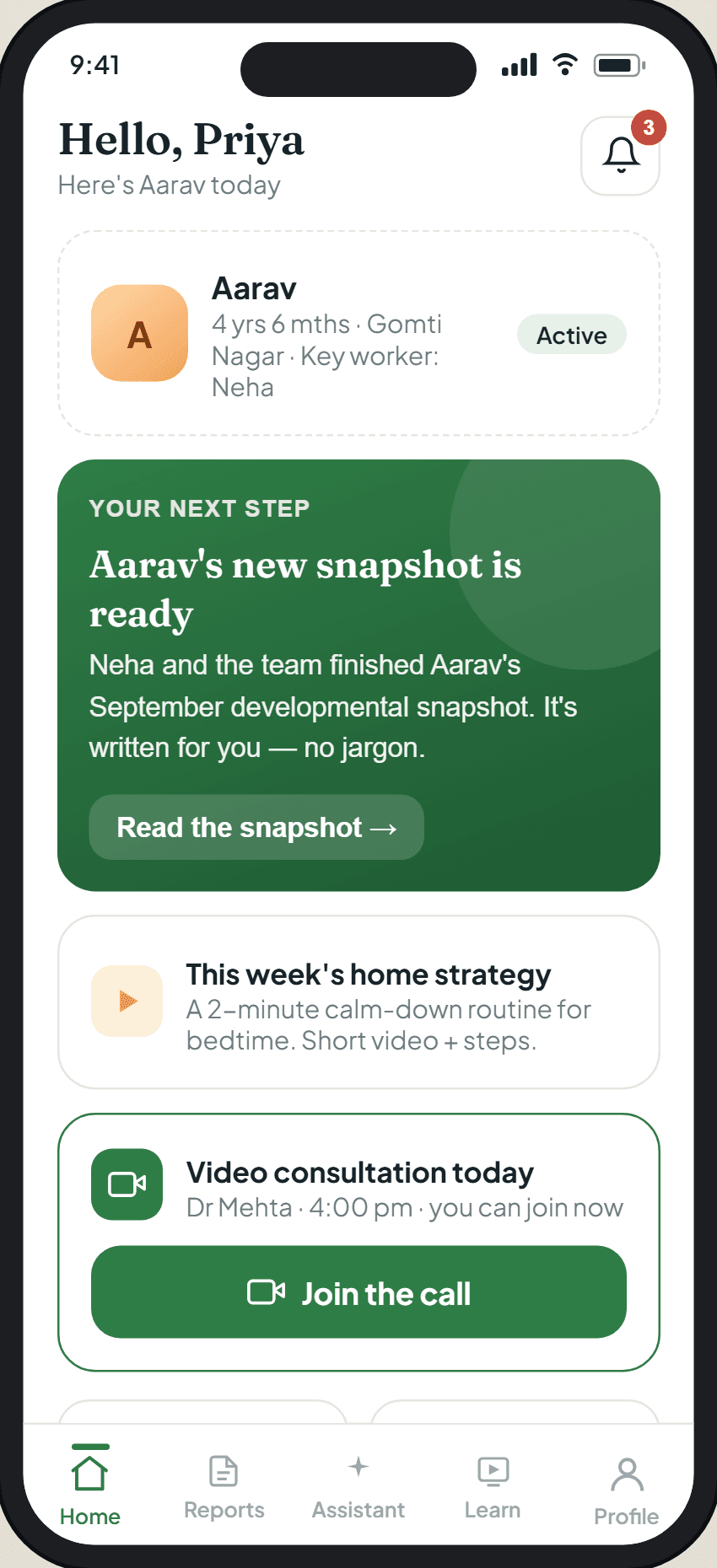
Set up by your clinician, so your child's plan is waiting when you open it. Here is how to find your way around. The screens below use sample information, not a real child's data.
Signing in — no password to remember
Your home screen — one clear next step
Your child's reports, written for you
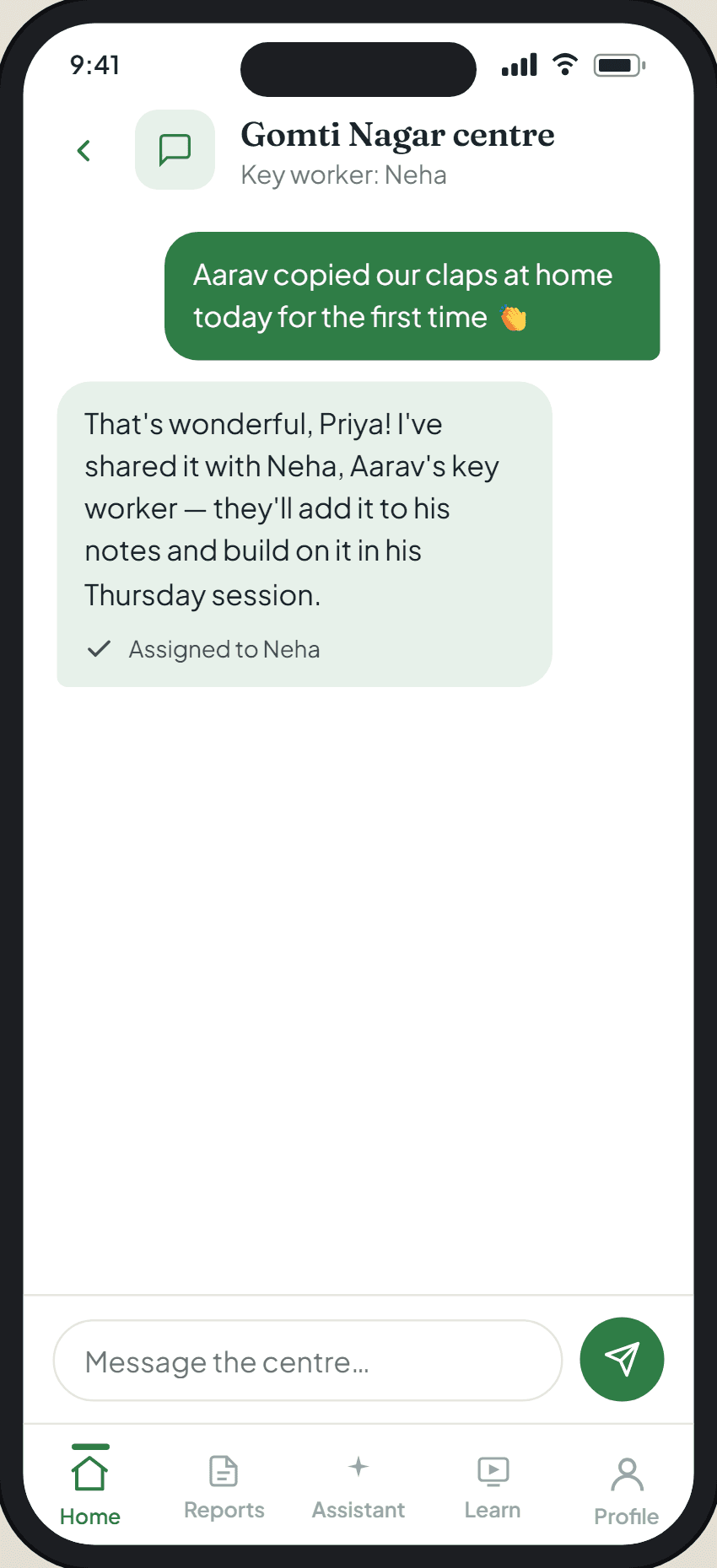
Message your centre
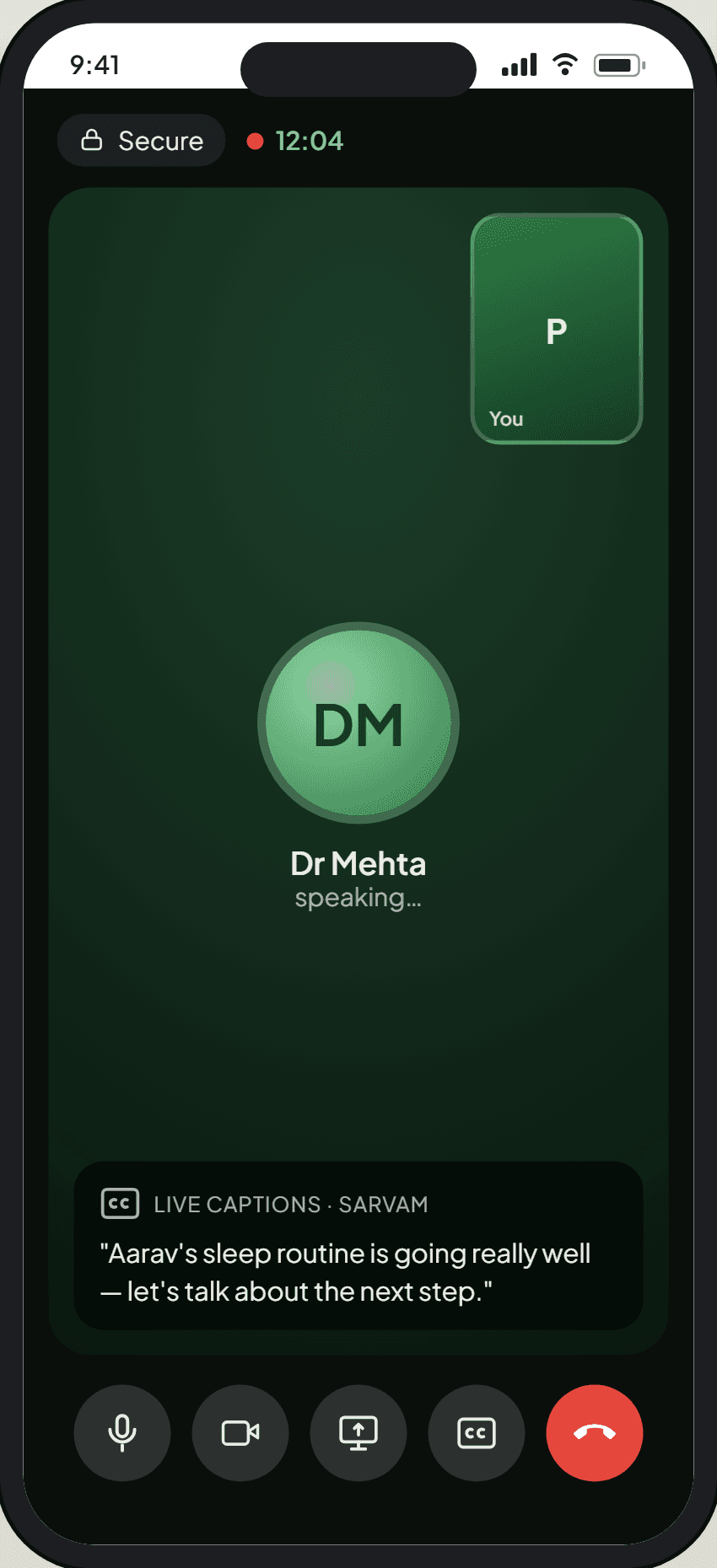
Join a video consultation
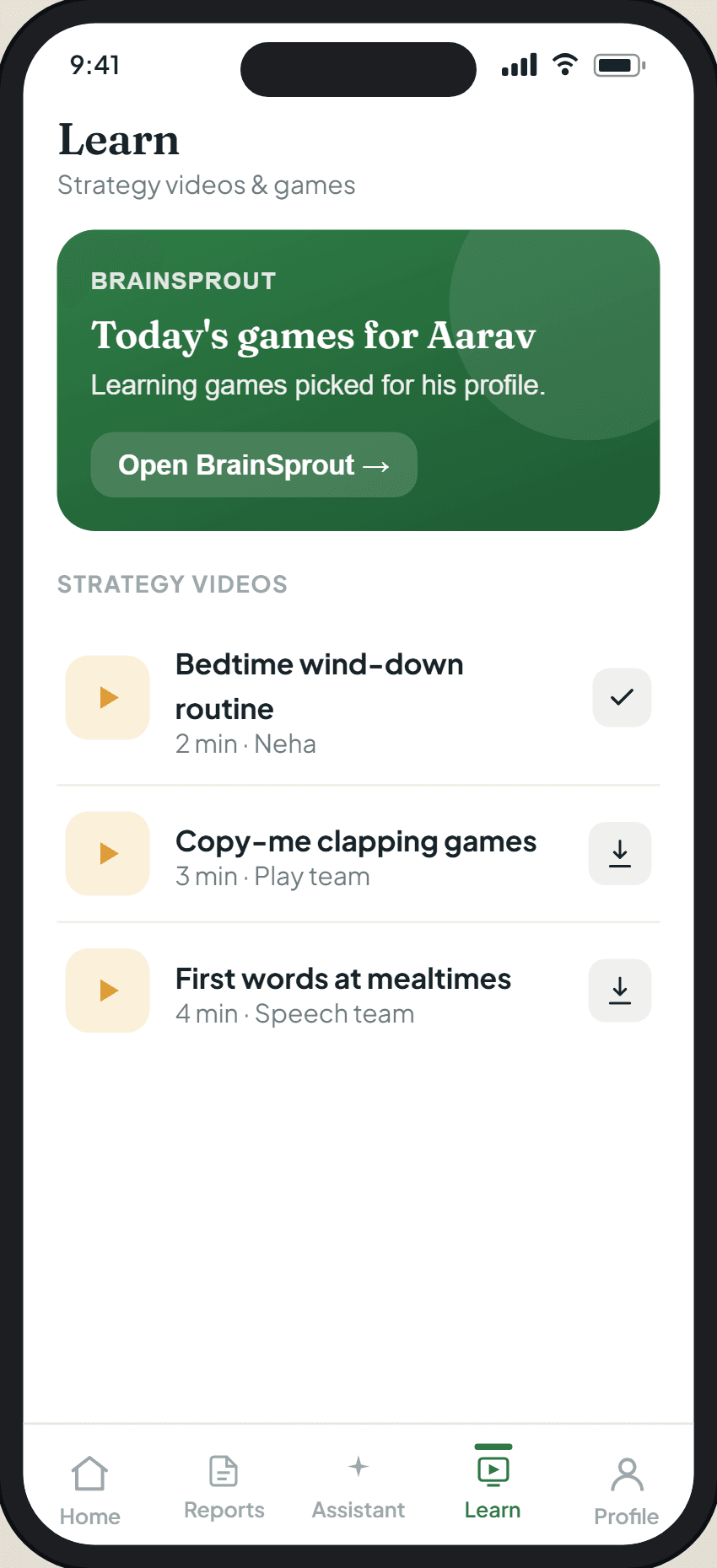
Activities and games for your child
Ask the assistant — and know its limits
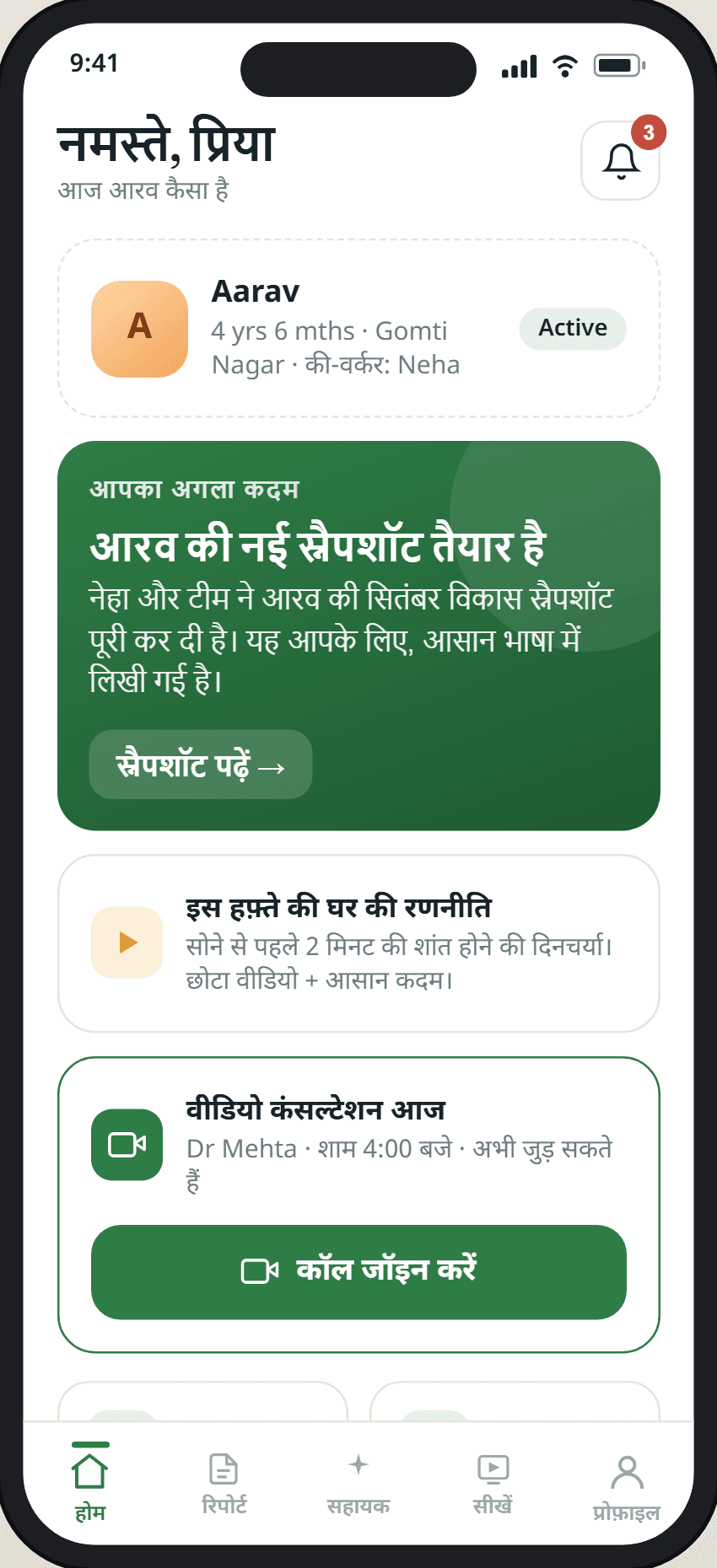
In your language
Receipts and payments
Questions new parents ask
How do I get the app?
Your clinician sets your family up as part of your child's programme, so the plan and profile are already there when you open it. It is in final testing now, and we will say here when it is on the App Store and Google Play.
Do I need an assessment to use it?
Yes — the personalised plan, the profile and the recommended activities all come from the assessment. Without one there would be nothing in it that is about your child.
What does it cost?
The app itself is free. Clinical services — assessments, strategies, follow-up — are billed as they always have been, and you can pay them in the app if you prefer.
Which languages?
English, Hindi and Arabic — the same three our booking supports.
Is the assistant safe to ask?
It is bounded on purpose. It does not diagnose, decide or change treatment, interpret your child's results, or take a payment. It is labelled as AI rather than a clinician, and anything clinical has a person behind it.
What if it's an emergency?
The app is not for emergencies. If your child needs urgent help, contact your local emergency services.
Your team is here to help you get started.
Book an appointment and we'll set your family up with the app and walk you through it. More on the app on the app page, and on how the whole programme fits together on services.