

How to use the MyGeniusLane app
A guided tour of the family app — what each part does, where to find it, why it is there, and how to use it. The plan, reports, guidance and appointments your clinician set up are all here; this page shows you around.
Your child's plan, carried home
Children in our programmes work hard with our team, but most of the week happens at home — and that is where the plan either takes hold or quietly fades.
MyGeniusLane Family carries your child's plan, their reports, the guidance and the appointments home, and keeps you connected to the care team between visits. It is not a separate product you sign up to: it is where your child's assessment goes to live.
Download it and sign in
Getting in takes a couple of minutes, and there is no password to remember. Need the install codes? They are on how we support families. On an iPhone, follow the iPhone guide.
1 · Get the app for your region
Install MyGeniusLane Family from the store for your centre's region. The per-region install codes are on how-we-support-families. iPhone users have a step-by-step guide on the iPhone page.
2 · Sign in with a one-time code
Enter the email your centre has for you and tap Send me a code. A 6-digit code arrives by email — type it in and you are in, on any phone. There is no password to set or forget.
3 · Your child is already there
Your clinician set your family up as part of the programme, so the plan, reports, activities and appointments are waiting. Anyone new can also register and request an appointment from inside the app.
Where everything is
The app shows five tabs along the bottom — Home, My Child, Messages, Assistant and More. Here is each area, what it is for, and how to use it. Screens are shown with sample information, never a real child’s data.
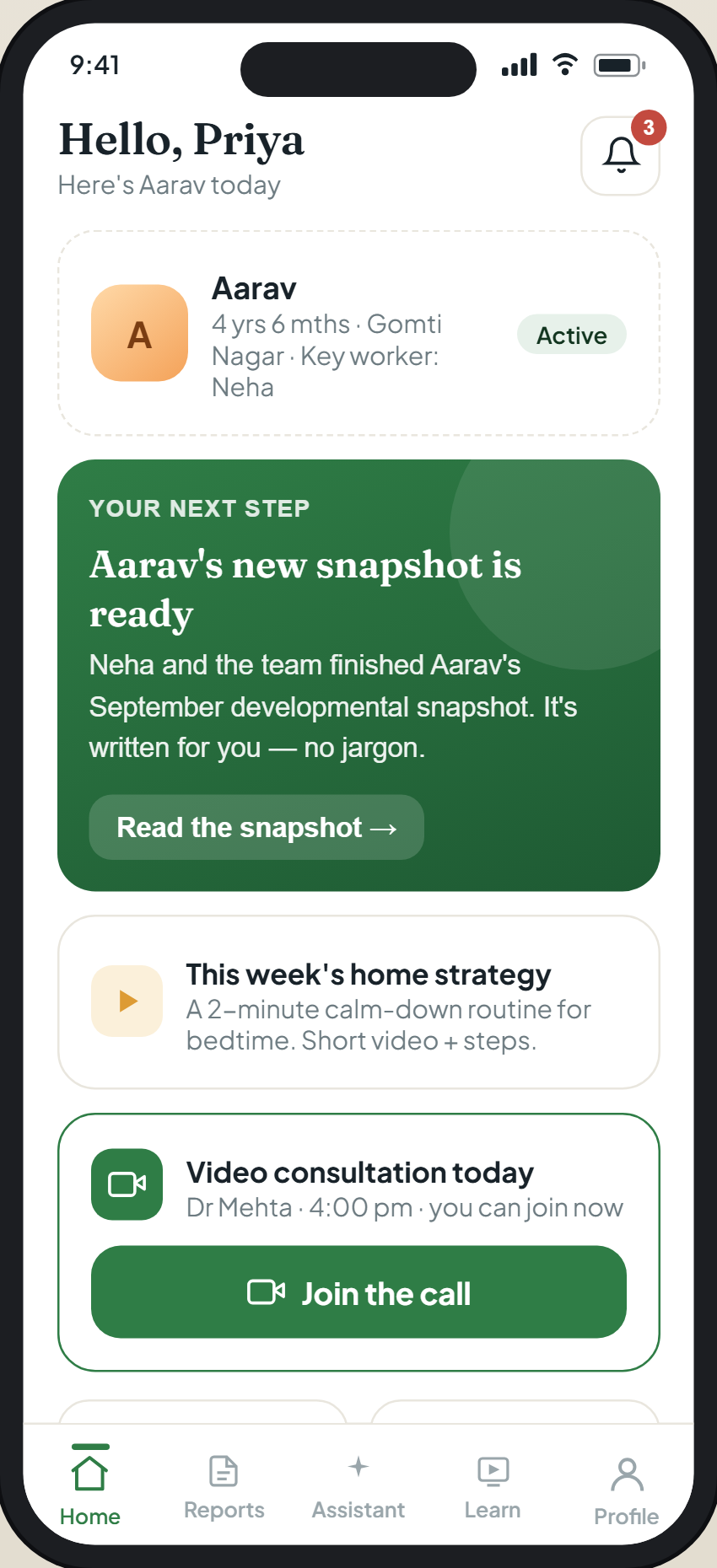
Home — your child at a glance
Home opens on the one next step that matters for your family this week, plus what is new and any announcements or messages from your centre.
The first tab, bottom-left. The app always opens here.
- Start here each time — it tells you where to begin, so you do not have to hunt.
- Tap the next step to go straight to it.
- Check the top of Home for new announcements and messages from your centre.
My Child — the profile and everything about their care
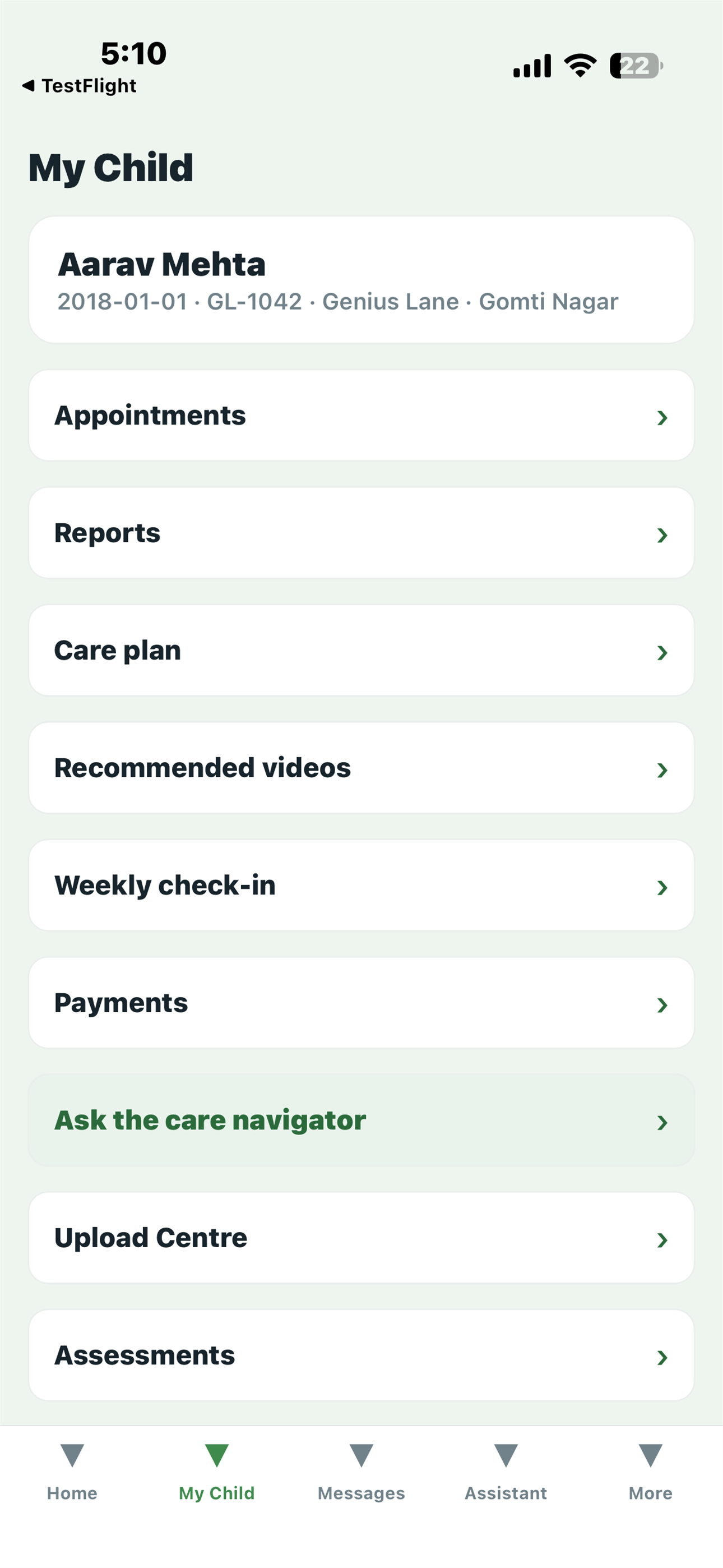
Your child's profile — a photo and their growth — and, inside it, their reports, a guided explainer of their diagnosis, the care plan with recommended activities and videos, and a quick way to tell the team about anything new.
The second tab along the bottom. Tap in, then tap through to each area below.
- Open My Child to see the profile, then scroll to the area you need.
- Add or update your child's photo and growth so the record stays current.
- The areas below all live inside this tab.
Understanding the diagnosis
A guided explainer of your child's own condition — what it is, the journey, what helps at home and what to steer clear of — in your language. It opens alongside their report, so the words in the report make sense. Open it whenever a term is unfamiliar.
Reports
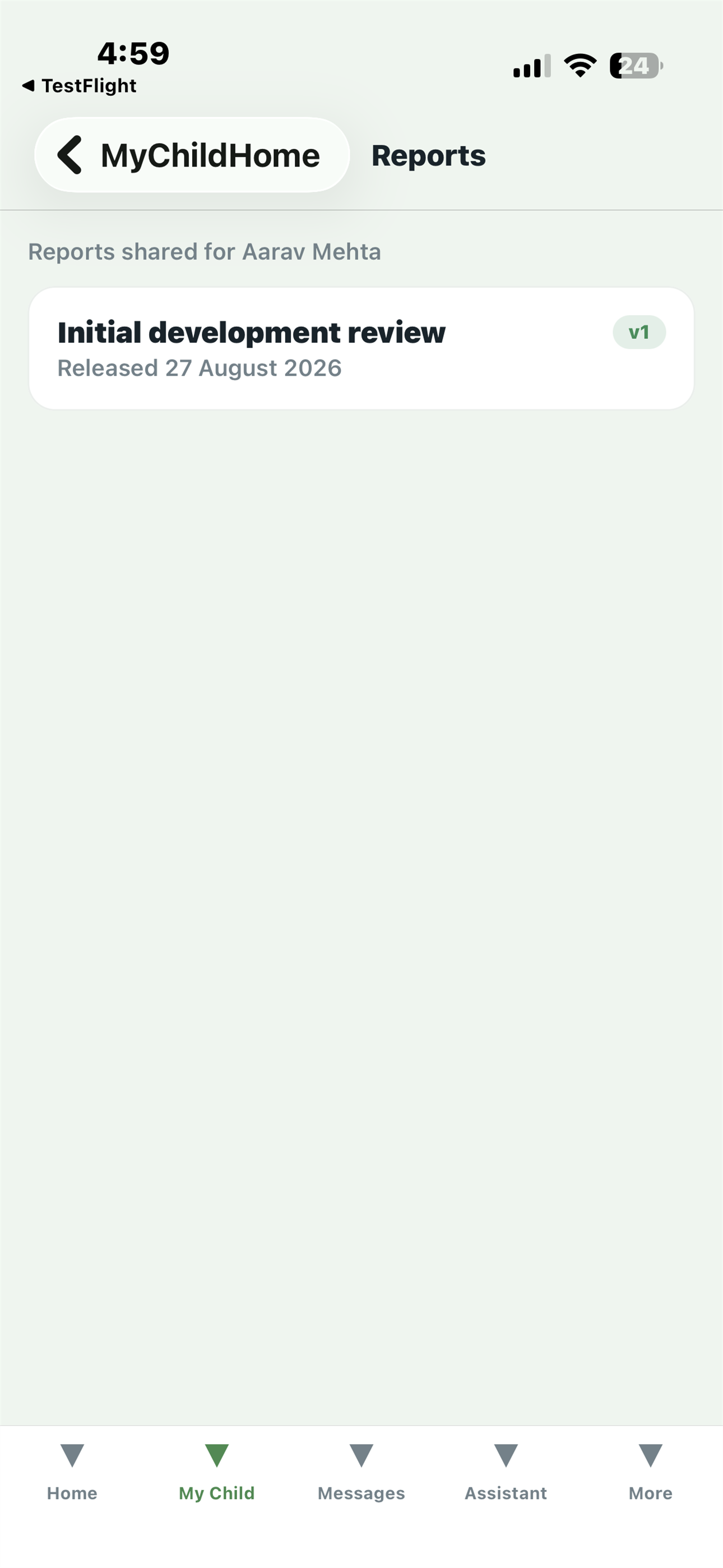
Reports released by your clinician, written for families rather than for other clinicians, with the developmental profile shown as a graph. You only see a report once your clinician has released it. Tap a report to read it; use the controls to translate it into your language or have it read aloud.
Care plan
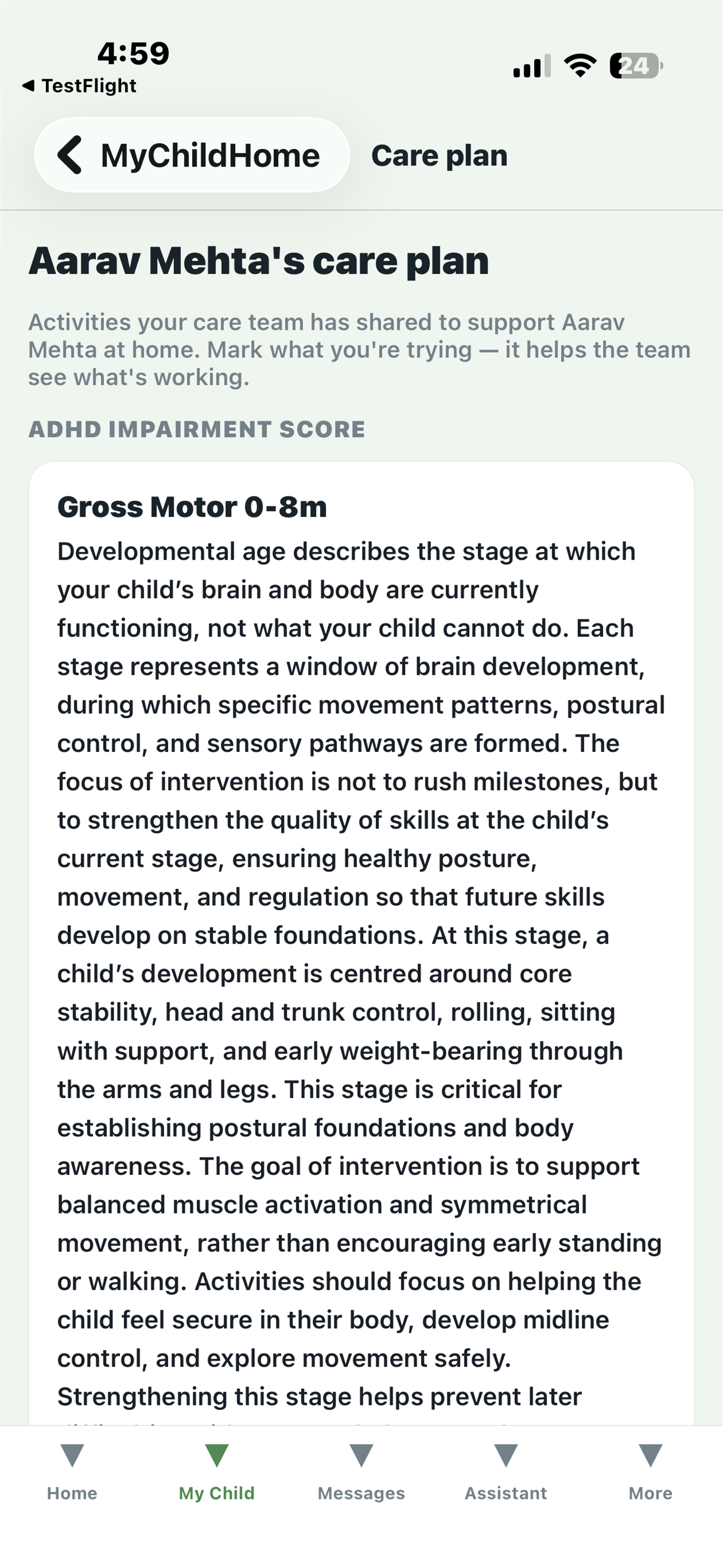
The activities and videos recommended for your child — chosen for the level they are working at, not for their age — short enough to fit into a normal day. Work through them at home between appointments.
Anything new?
A quick note to tell the team about a new skill, a new behaviour or a worry, in your own words, without waiting for the next appointment. Tap it, write what you have noticed, and it reaches your care team.
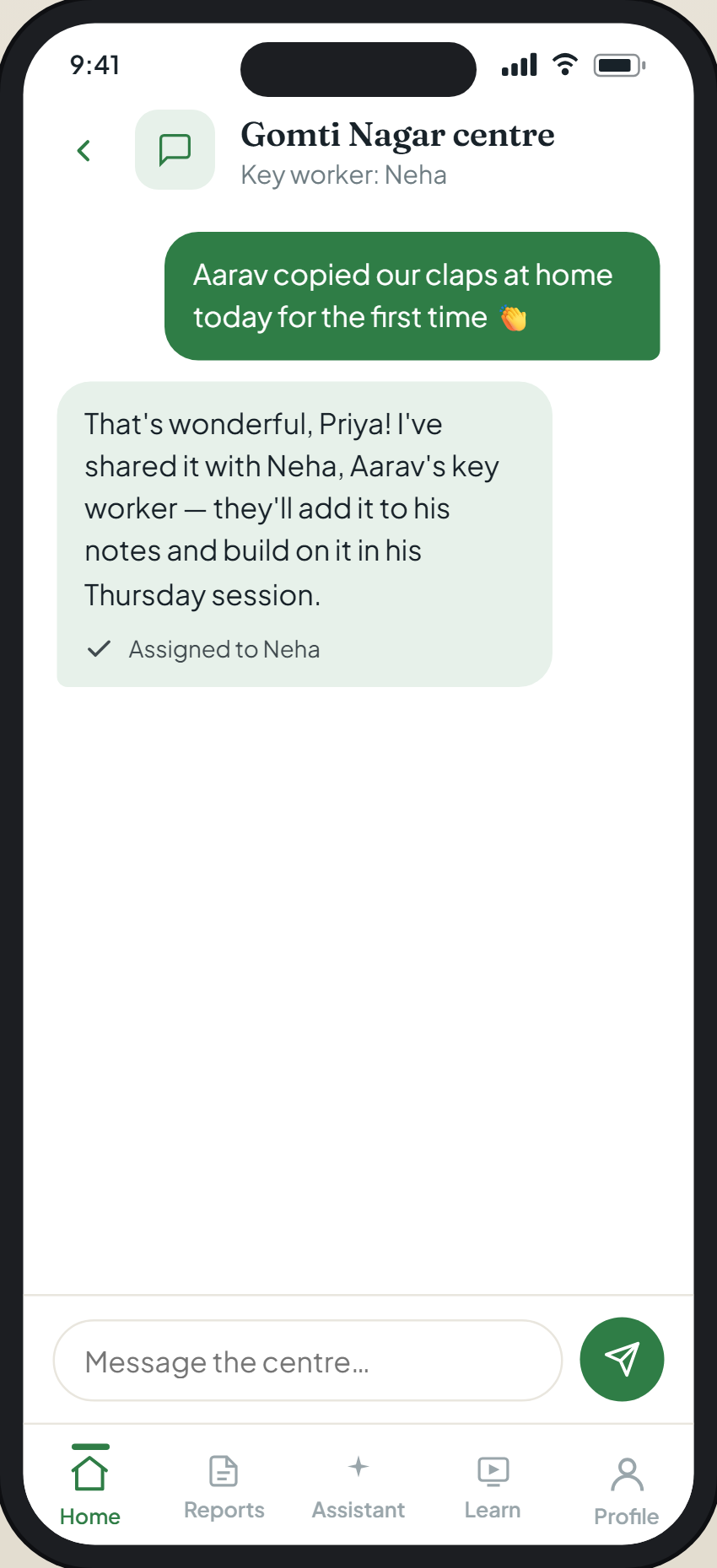
Messages — a secure line to your care team
Secure two-way messages with your care team, plus announcements your centre sends out.
The middle tab along the bottom.
- Write to your centre securely — it reaches the care team, and their reply comes back here.
- Use Messages for anything clinical or anything that needs a person.
- Announcements from your centre also appear here, so you do not miss them.
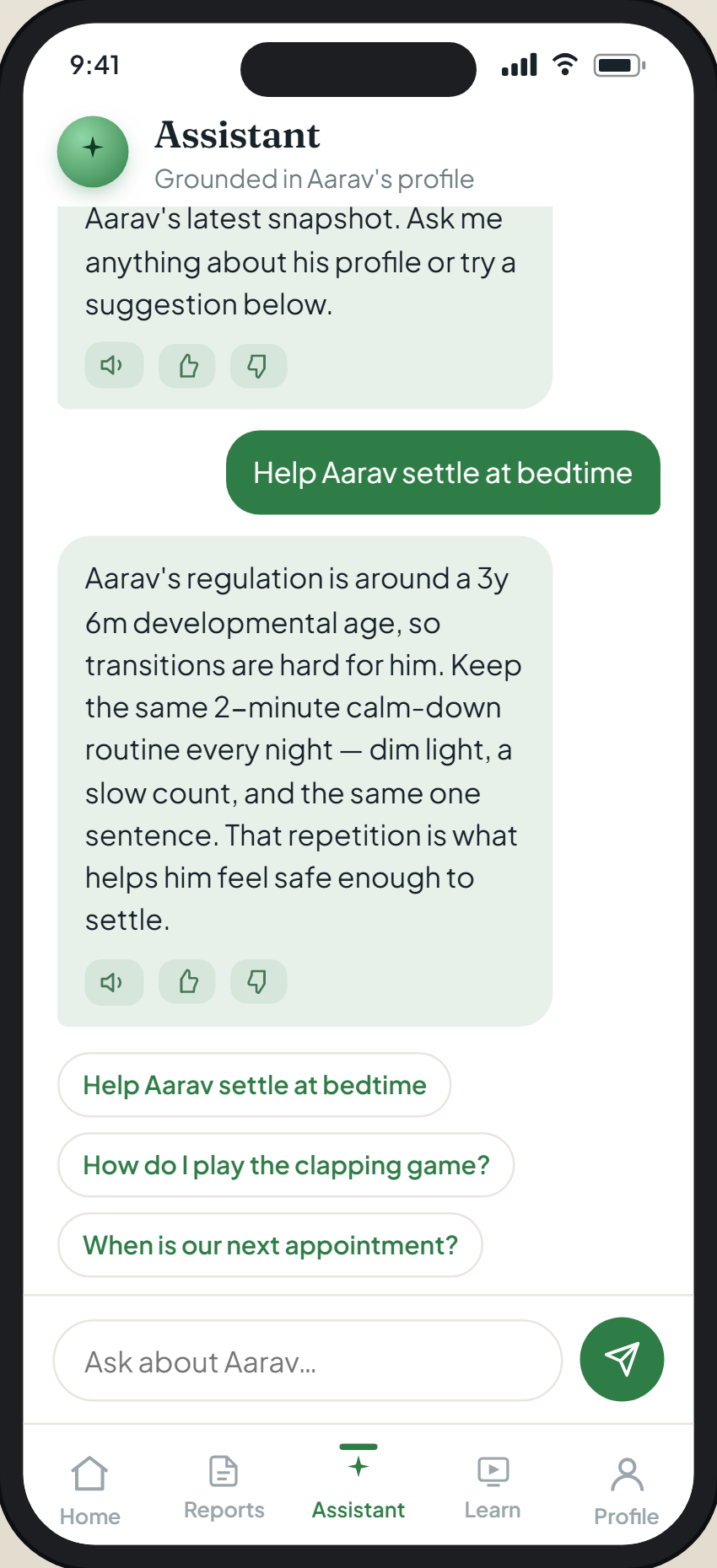
Assistant (Sprout) — day-to-day help, grounded in your child's plan
Your private line to the care team and to Dr Rahul Bharat. Ask anything about your child, share what you notice — it passes that to your team — and get calm, practical day-to-day and behaviour help drawn from your child's own plan. Replies can be read aloud in your language.
The Assistant tab along the bottom.
- Ask a question in your own words, any hour of the day — morning routines, what an activity is for, what to try next.
- Describe a hard moment and it offers calm, specific suggestions grounded in your child's profile, not generic advice.
- Tell it what you have noticed and it distils it into a clear picture your care team can see.
- Turn on the voice to have replies read aloud in your language.
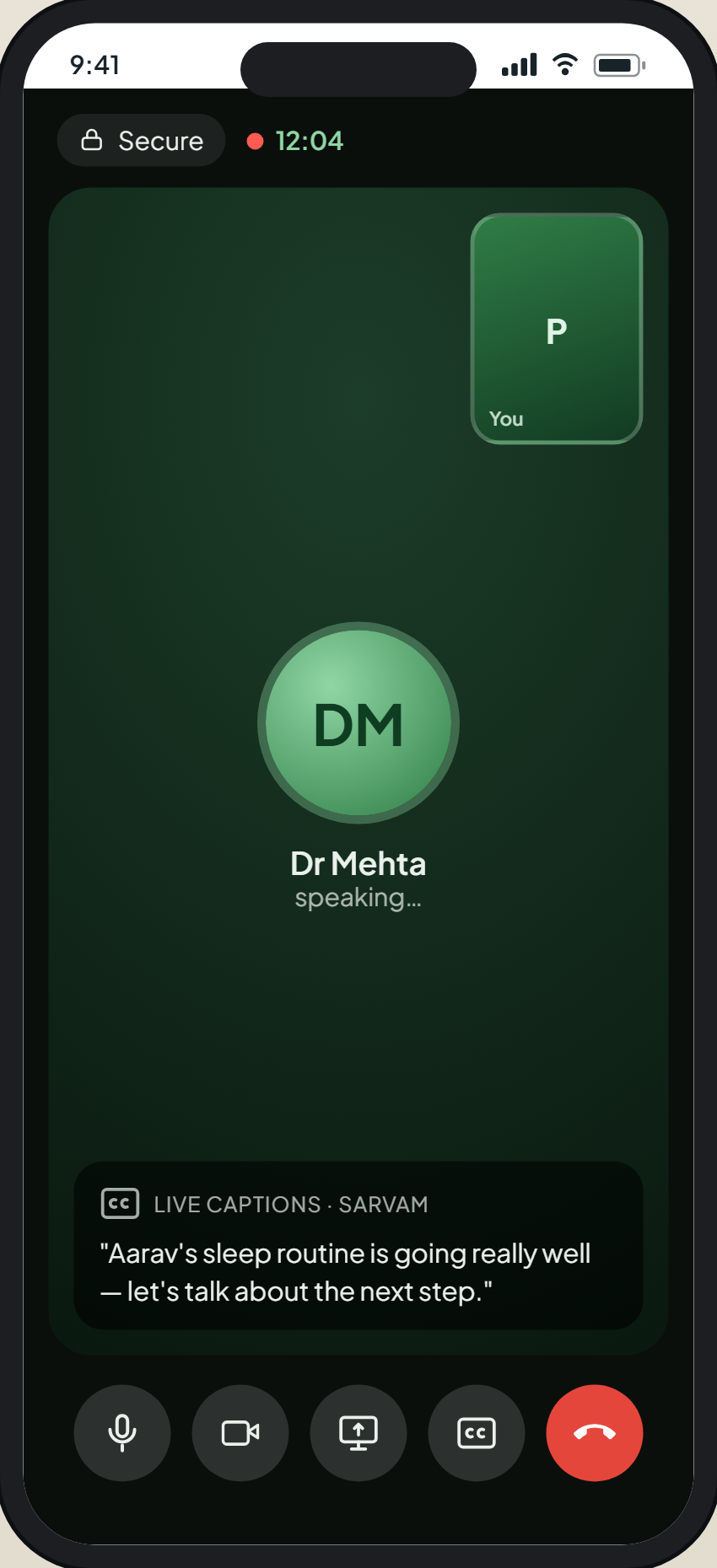
Appointments — see, book and join from home
What is booked, the ability to book or reschedule, reminders so nothing is missed, and a secure video consultation you can join from inside the app.
Inside My Child, with your child's care. Video calls open from the appointment when it is time.
- See what is coming up, and book or reschedule without phoning.
- Keep reminders on so an appointment does not slip by.
- Join a secure video consultation from home when it is time, with live captions.
Uploads — send documents and short videos
A place to send documents and short videos for a clinician to review — a school report, a letter, a clip of something you want the team to see.
Inside My Child, in the upload area.
- Tap to add a document or a short video from your phone.
- Use it instead of email, so everything stays with your child's record.
- A clinician reviews what you send as part of your child's care.
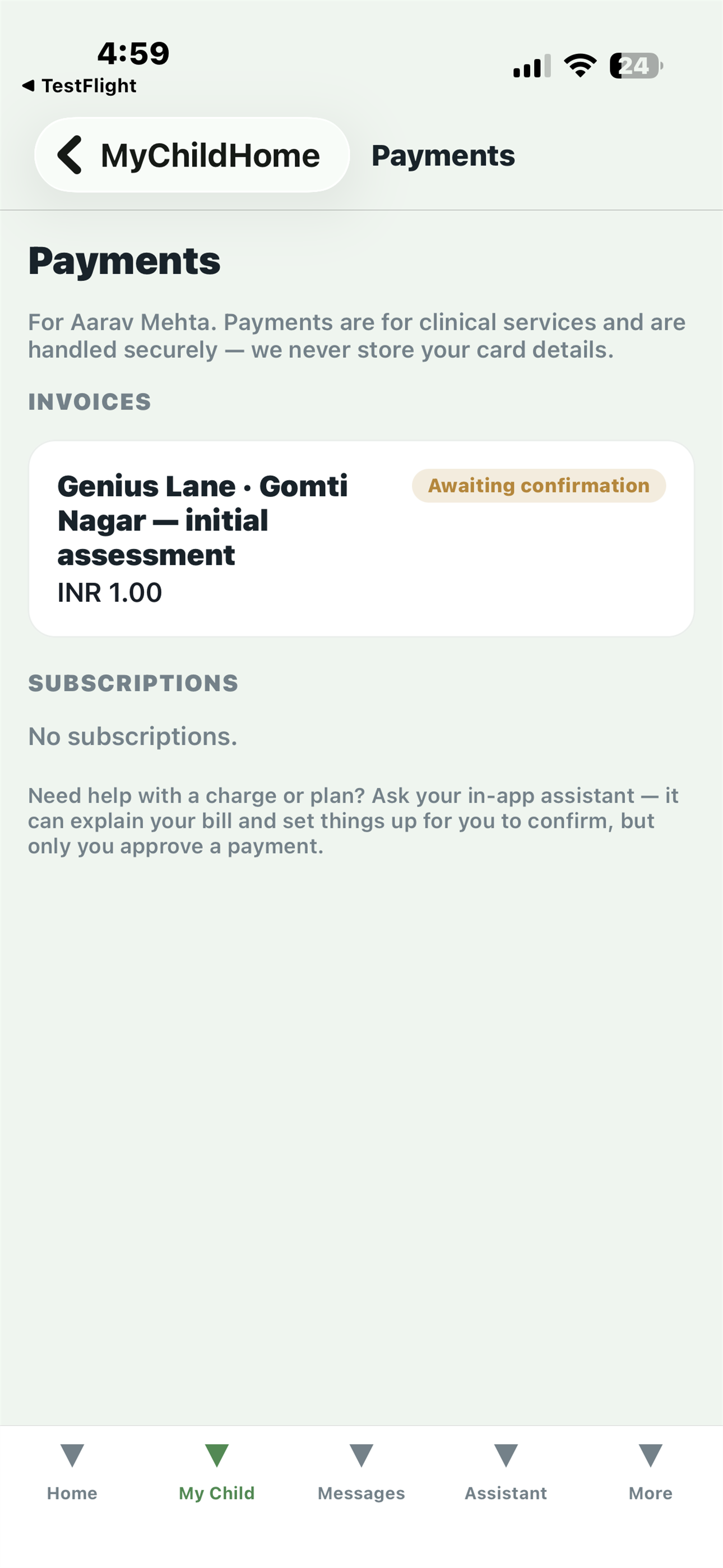
Payments — invoices and plans, paid securely
Invoices and plans paid securely inside the app. Card details are handled by the payment provider and never stored by us.
Inside My Child, with your child's care.
- See what is due and pay it in the app if you prefer.
- The app itself is free; what you pay for is the clinical services, as always.
- Your card details go straight to the payment provider — we never see or store them.
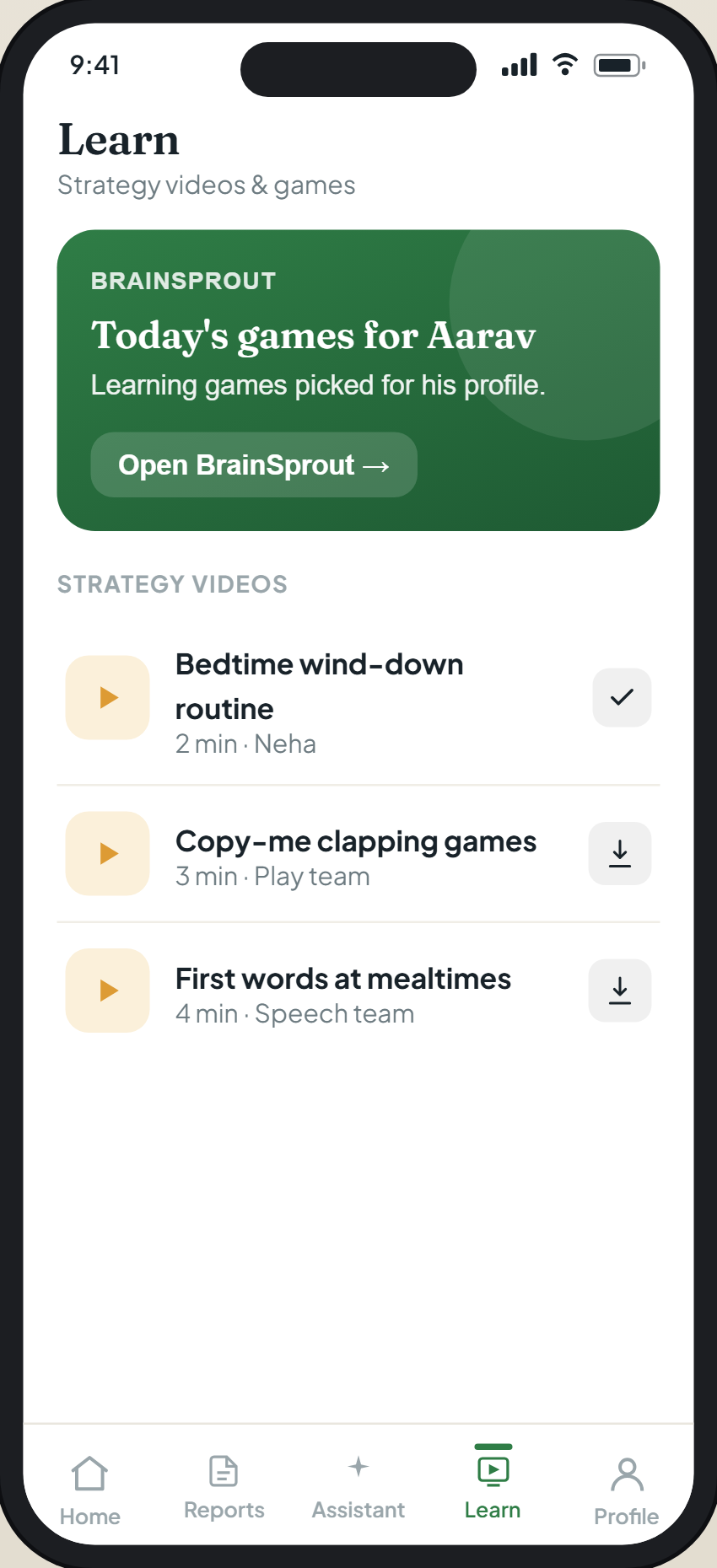
BrainSprout — learning games made for your child's level
One tap opens your child's learning games, a portal for ages 4 to 16 that finds their level and moves with them. They are never shown a score, and what they do feeds back as evidence a clinician reviews.
From the activities in the care plan, or wherever the app offers BrainSprout.
- Hand the phone to your child and let them play — the games find their level.
- There is no score and no pass or fail, so it stays low-pressure.
- What they do quietly becomes evidence your clinician can review.
More — account, privacy and sign out
Your account and privacy settings, your notification choices, and Sign out. You can lock the app with Face ID, a fingerprint or a PIN, and request account deletion from here.
The last tab along the bottom.
- Turn on Face ID, a fingerprint or a PIN to keep your child's information private on a shared phone.
- Set which notifications you want, so the app tells you what matters.
- Manage your account and privacy, including requesting account deletion, from here.
A few things that help
Turn on the assistant's voice
Have replies read aloud in your language — it is easier than reading on a small screen, and useful when your hands are full.
Add an “anything new” note between visits
When your child does something new, or something worries you, jot it in My Child. It reaches your team and nothing gets lost before the next appointment.
Keep appointments and reminders on
Leave notifications on so a reminder arrives before each appointment and you hear when something new is released.
Work the care plan into a normal day
The activities and videos are short and chosen for your child's level. A little, often, does more than a long session once in a while.
Send documents through Uploads, not email
A school report or a letter sent through Uploads stays with your child's record, where the team can find it.
Built around your child, and protective of their data
Only reports your clinician has released reach you, and nothing is diagnosed in the app. The assistant is labelled as AI, not a clinician — it does not diagnose, decide or change treatment, interpret your child's results, or take a payment, and a person decides anything clinical.
Your data is protected, payments go to the payment provider, and the app is not for emergencies — if your child needs urgent help, contact your local emergency services.
Questions parents ask
How do I get the app?
MyGeniusLane Family is on Google Play and on the App Store, in India and in the UK. Choose the one for your centre's region from how-we-support-families, open it, and sign in with the email your centre has for you. Your clinician sets your family up, so the plan and profile are already there.
How do I sign in — is there a password?
No password. Enter the email your centre has for you, tap Send me a code, and type in the 6-digit code that arrives by email. If no code arrives, check your spam folder, make sure you used the right email, and tap Send another code.
Do I need an assessment to use it?
Yes — the personalised plan, the profile and the recommended activities all come from the assessment. Without one there would be nothing in it that is about your child. Anyone new can register and request an appointment from inside the app.
What does it cost?
The app itself is free. Clinical services — assessments, strategies, follow-up — are billed as they always have been, and you can pay them in the app if you prefer.
Is the assistant safe to ask?
It is bounded on purpose. It does not diagnose, does not decide or change treatment, does not interpret your child's results, and never takes a payment. It is labelled as AI rather than a clinician, and anything clinical has a person behind it.
Which languages does it work in?
English, Hindi and Arabic — the same three our booking supports. Reports can be translated and the assistant can reply, and read aloud, in your language.
Want the shorter overview, with the feature highlights? See the MyGeniusLane page. Can’t sign in, or no code arrives? Email support@geniuslane.org and we’ll sort it.